Follow this step-by-step guide to configure your environment, generate AI scripts, and deploy your Chatter Bot autonomously.
Learn how to feed the AI context about your project and automatically generate thousands of unique, realistic conversation lines.
Jump to SectionDeploy your generated scripts using session files and proxies with autonomous account rotation.

Jump to SectionEdit general, niche, and moderator prompts to customize exactly how your bots converse.
Jump to SectionLearn how to create custom meme event prompts and store images for autonomous posting.
Jump to SectionA valid API key from Gemini (Google) or OpenAI (for ChatGPT models). Gemini Model is preferred.
Note: You will need to activate billing for your project tied to the generated API key to use later models such as Gemini 3/3.1 Flash. Watch this video guide which shows how to create an API key on Google AI Studio.
An api_id and api_hash registered at my.telegram.org under your Telegram account. Only one api_id and api_hash can be created per Telegram account. Use another Telegram account to create more.
Warning: Using a cheap shared VPN can cause errors when generating API credentials on the Telegram website. It is best to use clean high-quality residential IPs/Proxies. You can create up to two API IDs and hashes per IP, after which you must switch to a different IP.
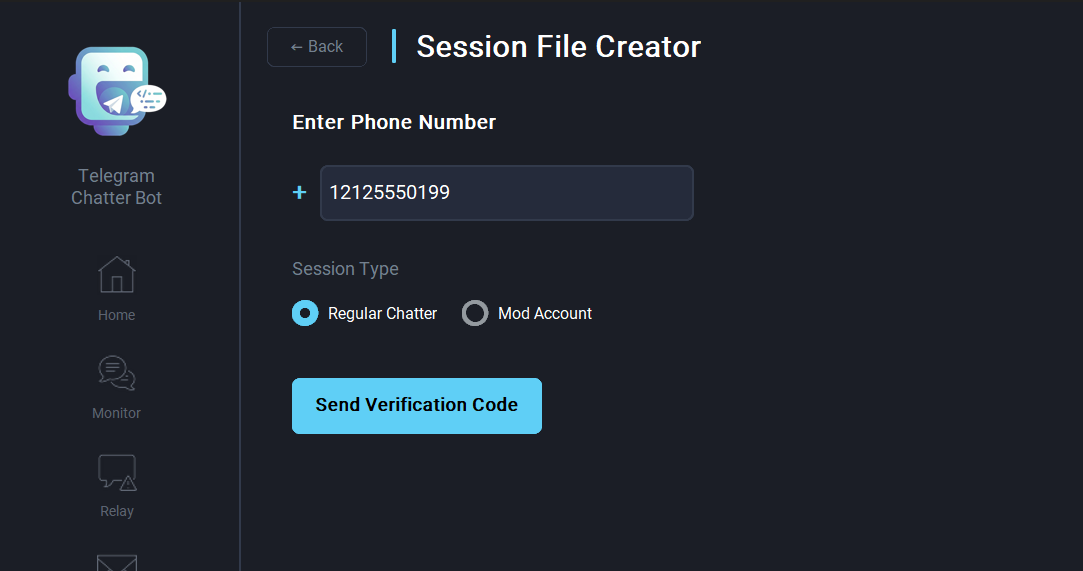
To use multiple accounts simultaneously, you will need Telegram session files.
Registration Tip: Telegram sometimes asks for an email to register new accounts. We suggest using the Telegram Dropmail Bot or the Dropmail web interface for a temporary address.
To protect your bot accounts from bans, you need proxy IPs to rotate network traffic. We recommend providers like decodo.com as they have STATIC RESIDENTIAL IP Plans, which are cheaper than rotating ones.
Note: You must obtain high quality residential IPs, not datacenter IPs, as Telegram usually flags datacenter addresses for spam. The required proxy format for the Chatter Bot is proxyURL:port:username:password.
Pro Tip: Prepare a Project URL or Whitepaper.
Have a link to your target project's website or a document with its background info ready. The Script Generator will use this to learn your specific niche perfectly!
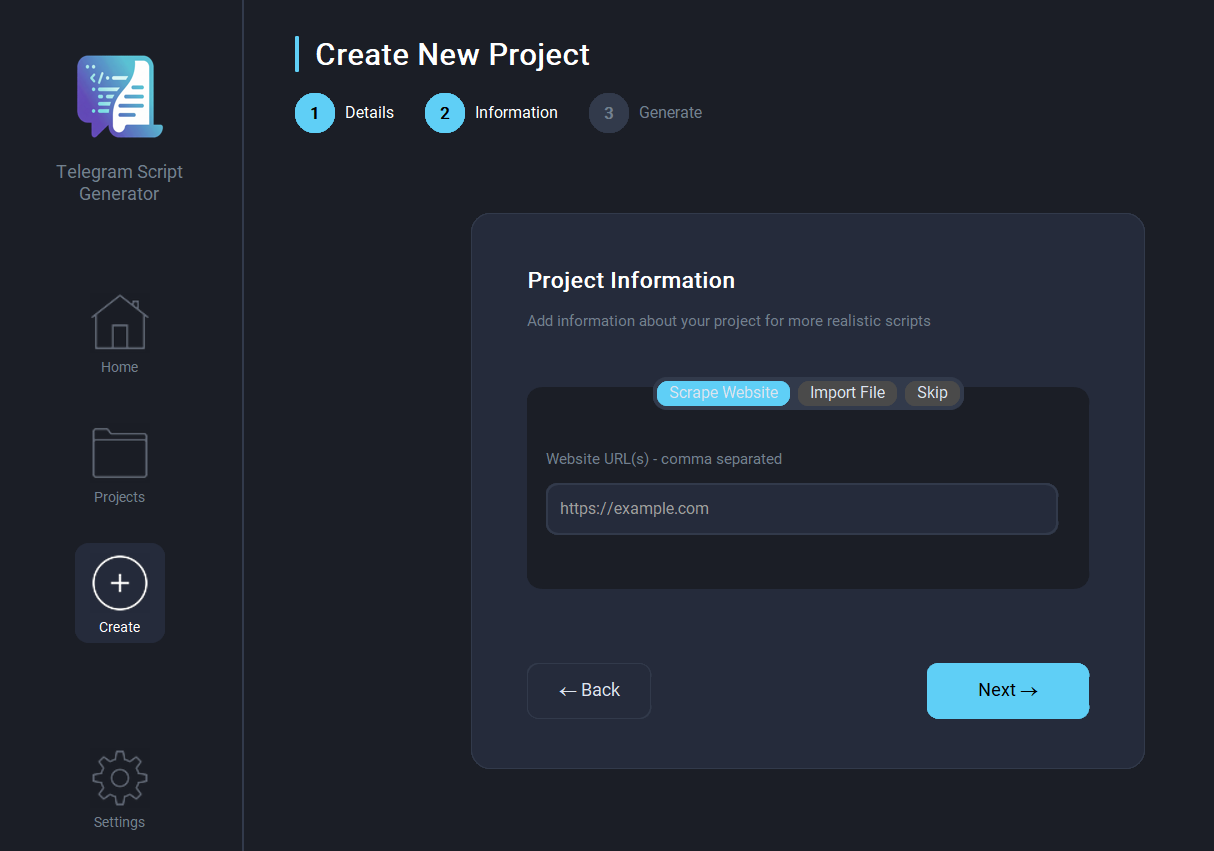
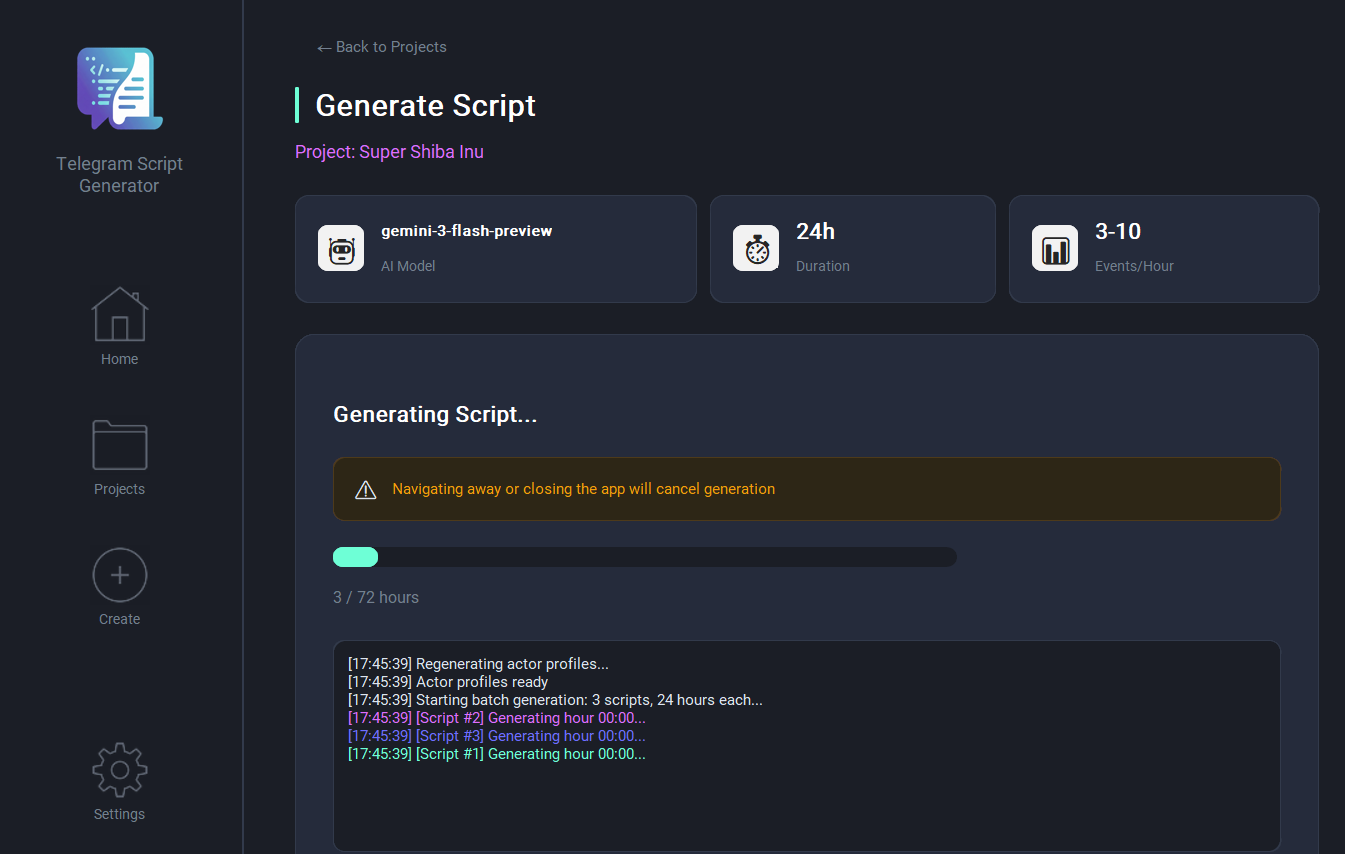
Generate intelligent, niche-specific conversation lines.
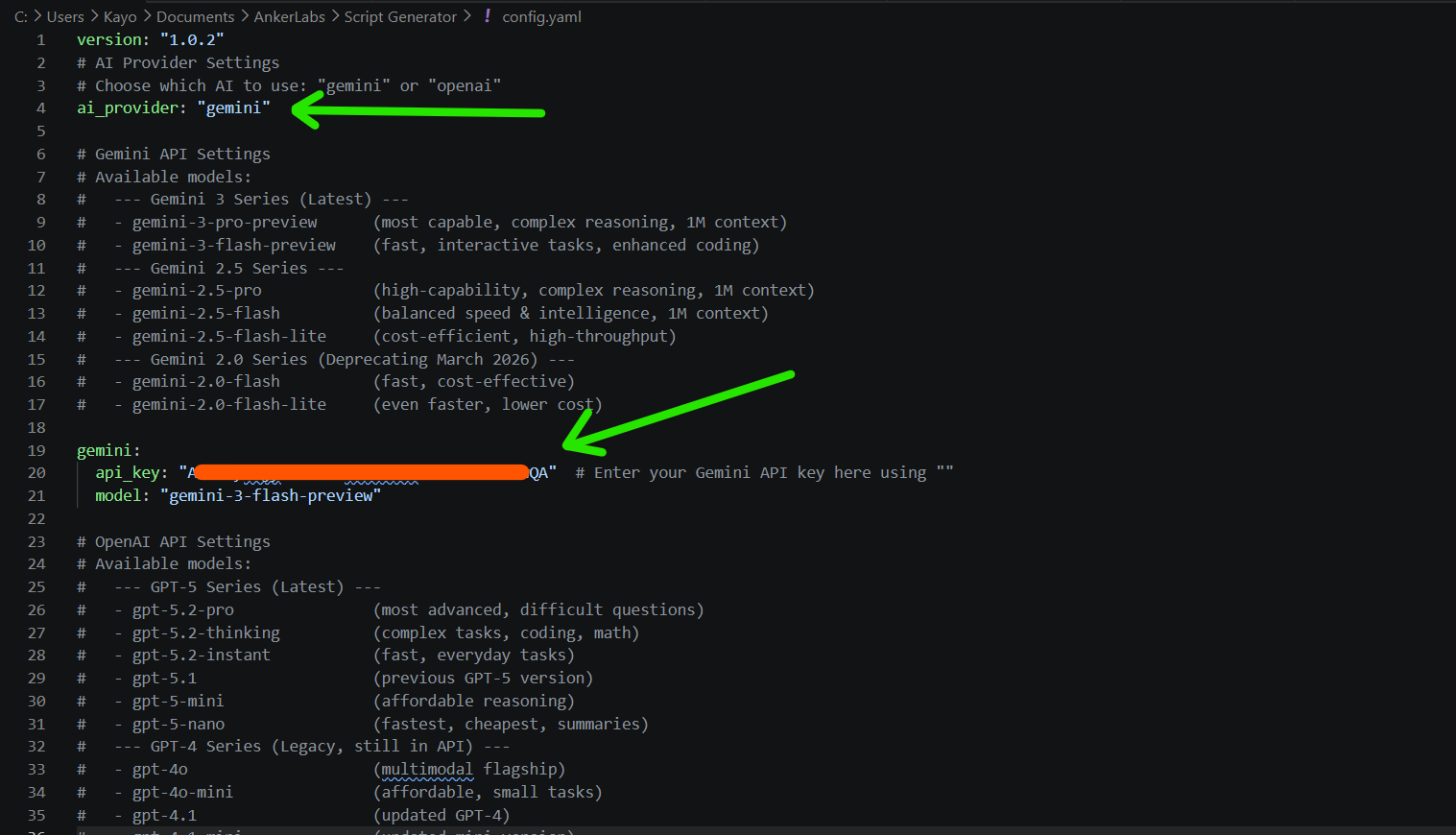
config.yaml file using any text editor (like Notepad).ai_provider setting and set it to either "gemini" or "openai".api_key: "" field for your chosen AI provider. You can also change the model for your chosen AI. Currently the default Gemini Flash 3/3.1 has the best results. Feel free to experiment with newer models once you understand how the app works.
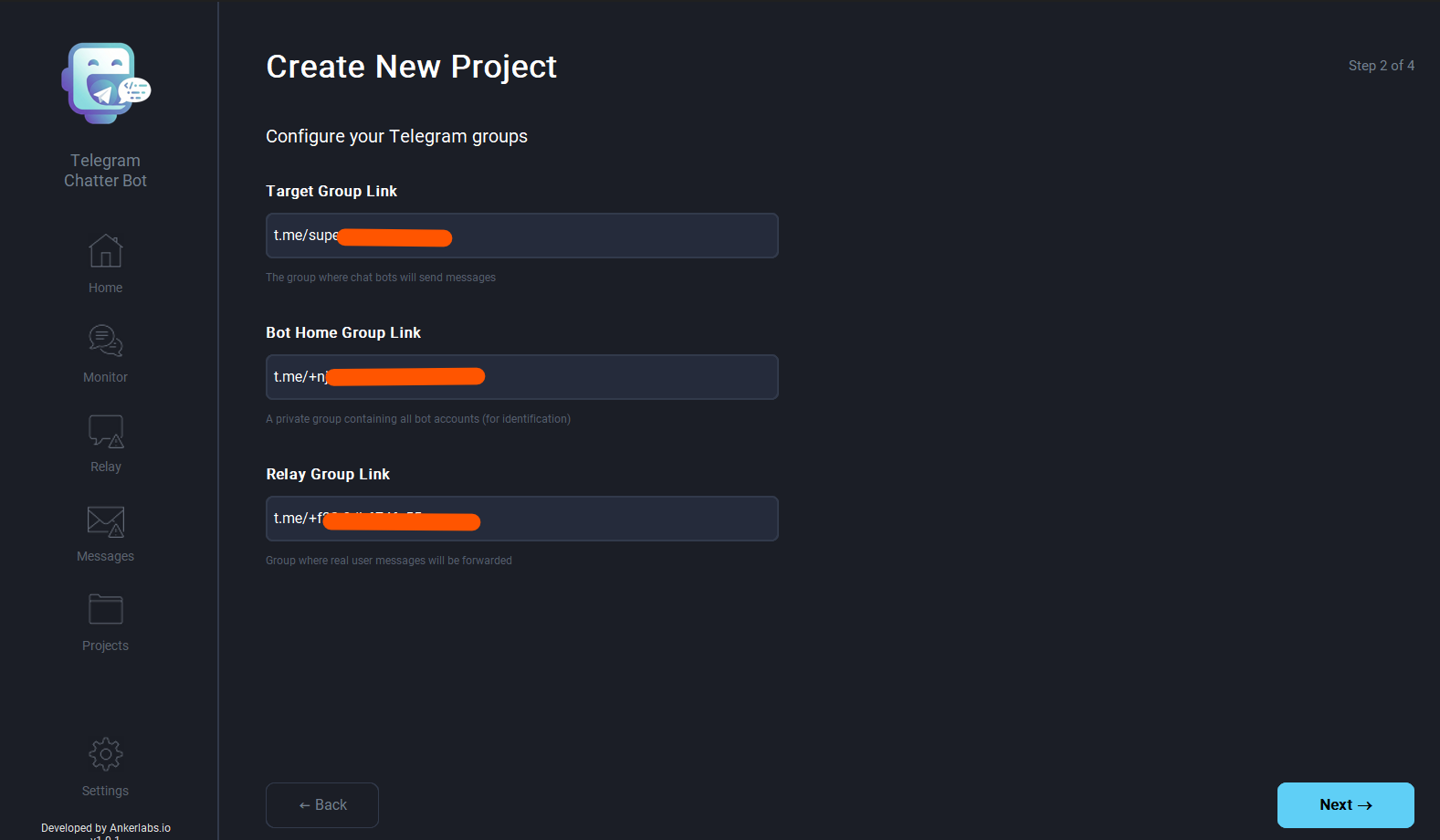
Deploy generated scripts using your session files and proxies.
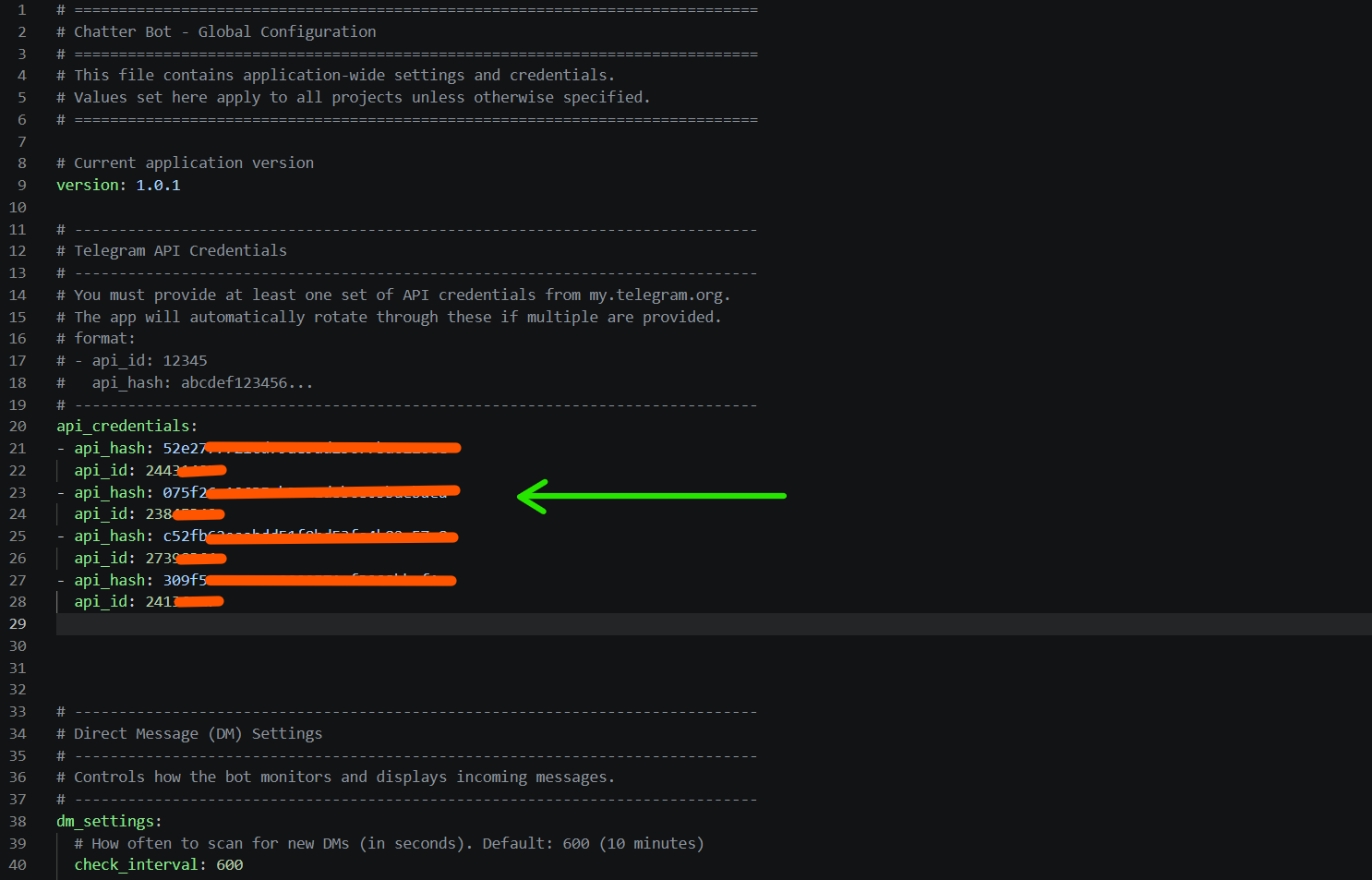
global_config.yaml file in a text editor.api_credentials, input the api_id and api_hash which you can generate from my.telegram.org. You can add multiple sets to rotate automatically (recommended).
Organize your purchased or generated Telegram .session files into the correct folder structures so the bot can distinguish account roles. Navigate to your workspace and arrange them like so:
sessions/ ├── M_447123456789/ # Mod Account │ └── 447123456789.session ├── R_447987654321/ # Relay Account │ └── 447987654321.session └── 447555666777/ # Standard Member Account └── 447555666777.session
Relay Alerts: To receive relay alerts, you must add the R_ prefix to at least one regular session folder (as shown in Step 2). To quickly manage your files, click the "Settings" button and select "Open" under the 'Sessions' category.
Customize Session Files: You can individually customize your accounts by selecting the "Customize Session Files" button under Quick Actions to change roles, names, bios, usernames, and profile images.
View real-time alerts in the Relay tab on the left navigation bar. These are messages from users outside your network that may require human attention.
The Messages tab allows you to respond manually with emojis and scheduled delays. Private messages are filtered to only show senders from your target group.
Response Logic: Replies to your bots are handled by the specific account targeted. General messages are handled autonomously by one of your Moderator accounts.
Persistent Operation: Closing the Chatter Bot will stop bot operations. The application window must remain open for the bot to continue its simulation and allow you to reply to messages.
Fine-tuning AI conversation logic and event triggers.
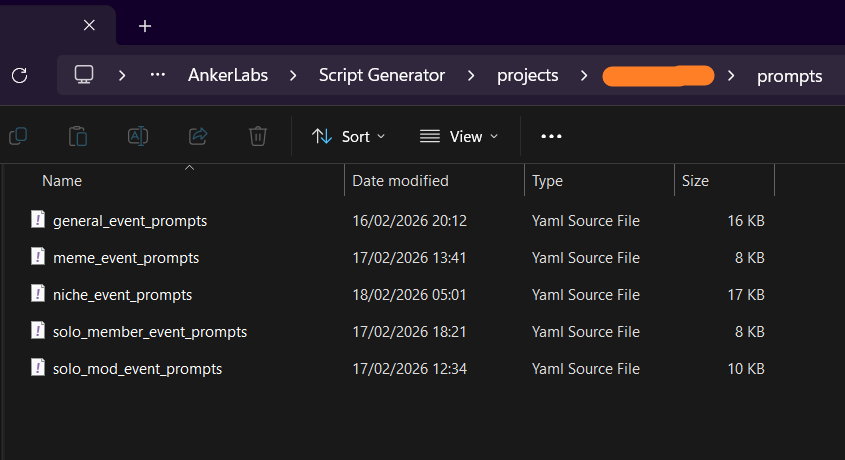
prompts folder on your computer.
Each file in the prompts directory targets a specific type of interaction within your Telegram group:
Open any of the files listed above with a text editor to remove or add your own custom prompts. The AI uses these as core instructions when building your script.
prompts: - "member asks if anyone else is worried about WWIII and people share their opinions" - "member mentions they just moved into a new neighbourhood and they regret their decision" - "member asks how everyone's day is going, people share mixed opinions"
Important: Always save your changes in the text editor. After saving, return to the **Script Generator** and click "Generate Script" again to see your new custom prompts reflected in the generated dialogue.
Customizing visual content and meme events for your groups.
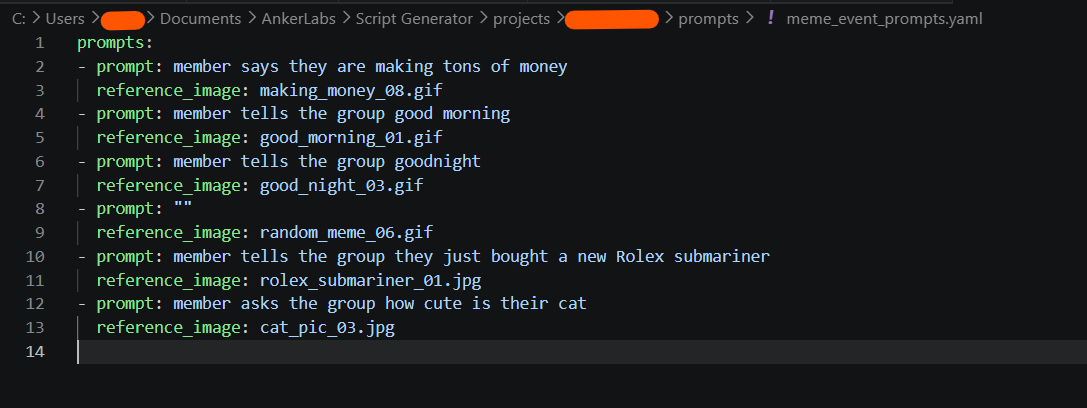
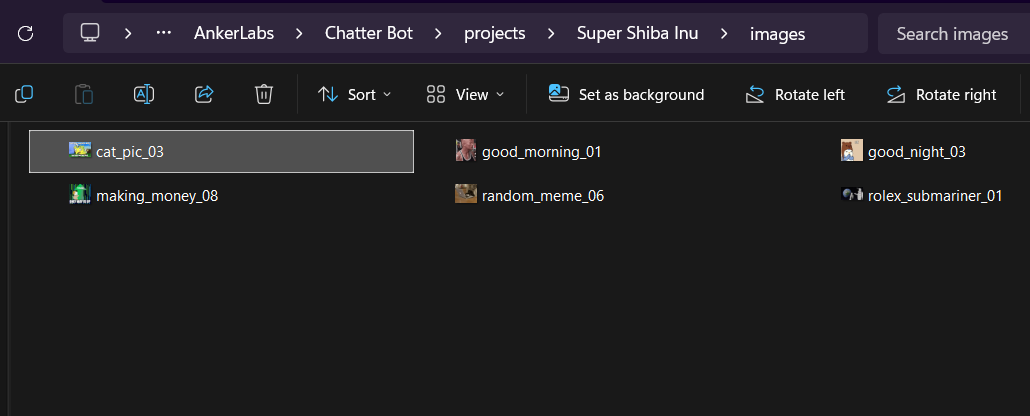
prompts folder for your project.meme_event_prompts.yaml file using any text editor (like Notepad). This file contains the instructions used by the AI to generate visual meme events.To define which images should be posted, you must specify an AI text prompt followed by its corresponding image reference file name. The format must follow the YAML structure shown below:
prompts: - prompt: "member says they are making tons of money" reference_image: making_money_08.gif - prompt: "member tells the group good morning" reference_image: good_morning_01.gif - prompt: "" # Leaving prompt empty will post only the image reference_image: random_meme_06.gif
C:\Users\[username]\Documents\AnkerLabs\Chatter Bot\projects\[project_name]\images
meme_event_prompts.yaml exactly match the files stored in the images folder (including extensions like .jpg or .gif).
Workflow Tip: When the Chatter Bot runs your generated script, it will automatically look up the image references and post the corresponding visual content whenever a meme event is triggered.